
Create a custom MDM profile for iOS to whitelist a particular domain in outlook app
Learn how to restrict iOS web access using a Web Content Filter profile while allowing Microsoft Outlook and Microsoft 365 login. This guide explains required domains, custom mobileconfig deployment, and JumpCloud MDM verification steps.
On this page
This is a common requirement for locking down devices in corporate environments. To achieve this on iOS, you need a Configuration Profile (.mobileconfig) that utilizes the com.apple.webcontent-filter payload.
Specifically, you need to use the "Built-In" filter type configured for "Specific Websites Only" (Whitelist mode).
Important Architecture Note
The Web Content Filter payload primarily controls traffic through the WebKit framework (Safari, and the in-app browsers used for the "Modern Auth" login screens in Outlook).
While this will successfully block browsing and allow the login screen to load, Outlook for iOS uses native APIs (not WebKit) for the actual background email synchronization. This filter generally will not block the Outlook app's ability to sync mail once logged in, but it will strictly control the initial login process, which is exactly what you are asking for.
The Required Domains
The domain name we are allowing here is example.com. To allow an O365/Exchange Online login to succeed, you cannot just whitelist outlook.com. You must whitelist the Microsoft Identity Platform (Azure AD) and its Content Delivery Networks (CDNs) that host the login UI scripts.
Minimum Required Whitelist:
login.microsoftonline.com(The auth endpoint)aadcdn.msauth.net(Scripts/Styling for the login page)aadcdn.msftauth.net(Scripts/Styling for the login page)outlook.office.com(API/Web access)outlook.office365.com(API/Web access)
The Custom MDM Profile (XML)
You can save the code below as a file named outlook_whitelist.mobileconfig.
<?xml version="1.0" encoding="UTF-8"?>
<!DOCTYPE plist PUBLIC "-//Apple//DTD PLIST 1.0//EN" "http://www.apple.com/DTDs/PropertyList-1.0.dtd">
<plist version="1.0">
<dict>
<key>PayloadContent</key>
<array>
<dict>
<key>AutoFilterEnabled</key>
<false/>
<key>FilterType</key>
<string>BuiltIn</string>
<key>PayloadDescription</key>
<string>Blocks all web traffic except M365 and example</string>
<key>PayloadDisplayName</key>
<string>example Web Whitelist</string>
<key>PayloadIdentifier</key>
<string>com.example.webfilter</string>
<key>PayloadType</key>
<string>com.apple.webcontent-filter</string>
<key>PayloadUUID</key>
<string>38C85906-5381-4C3C-9311-D5A6C323677A</string>
<key>PayloadVersion</key>
<integer>1</integer>
<key>WhitelistedBookmarks</key>
<array>
<dict>
<key>Title</key>
<string>Microsoft Login</string>
<key>URL</key>
<string>https://login.microsoftonline.com</string>
</dict>
<dict>
<key>Title</key>
<string>Microsoft CDN 1</string>
<key>URL</key>
<string>https://aadcdn.msauth.net</string>
</dict>
<dict>
<key>Title</key>
<string>Microsoft CDN 2</string>
<key>URL</key>
<string>https://aadcdn.msftauth.net</string>
</dict>
<dict>
<key>Title</key>
<string>Outlook API</string>
<key>URL</key>
<string>https://outlook.office.com</string>
</dict>
<dict>
<key>Title</key>
<string>Outlook API Legacy</string>
<key>URL</key>
<string>https://outlook.office365.com</string>
</dict>
<dict>
<key>Title</key>
<string>example</string>
<key>URL</key>
<string>https://example.com</string>
</dict>
<dict>
<key>Title</key>
<string>example Autodiscover</string>
<key>URL</key>
<string>https://autodiscover.example.com</string>
</dict>
</array>
</dict>
</array>
<key>PayloadDisplayName</key>
<string>example Restriction Profile</string>
<key>PayloadIdentifier</key>
<string>com.example.profile</string>
<key>PayloadOrganization</key>
<string>example</string>
<key>PayloadScope</key>
<string>System</string>
<key>PayloadType</key>
<string>Configuration</string>
<key>PayloadUUID</key>
<string>8FE4D3B0-8735-420E-9275-5A3E261907A8</string>
<key>PayloadVersion</key>
<integer>1</integer>
</dict>
</plist>
How to use this
Save: Copy the code block above into a text editor (like VS Code or Notepad) and save it as
outlook_whitelist.mobileconfig.Edit (Optional): If your organization uses a specific ADFS server or a custom SSO provider (like Okta or Ping), you must add their URLs to the
WhitelistedBookmarksarray in the XML, or the login redirect will fail.Deploy:
Via MDM: Upload this file to your MDM (Jumpcloud, Intune, Jamf) as a "Custom Profile".
Via Apple Configurator: Connect the device to a Mac and install the profile manually.
Via Email/AirDrop: Send the file to the iOS device and tap to install (good for testing).
Troubleshooting
If the login page appears white or hangs:
Missing CDN: Microsoft frequently updates their Content Delivery Networks. If the login page is blank, it means a script is being blocked. You may need to review firewall logs to see what URL was denied and add it to the XML.
Federated Login: If you are redirected to a company portal (e.g.,
sso.yourcompany.com) to finish the login, that URL must be added to the list above.
A Warning on Apple Services
I have included apple.com in the whitelist above.
Why? If you block all traffic including Apple's domains, the device may fail to check for updates, verify app certificates, or handle push notifications correctly. It is highly recommended to keep
apple.comandicloud.comallowed to maintain device health.
Deploy this MDM configuration via JumpCloud
Prerequisites
The iOS devices must already be enrolled in JumpCloud MDM.
For the Web Filter to work seamlessly and be non-removable by the user, the devices should ideally be Supervised (though it will still install on non-supervised devices).
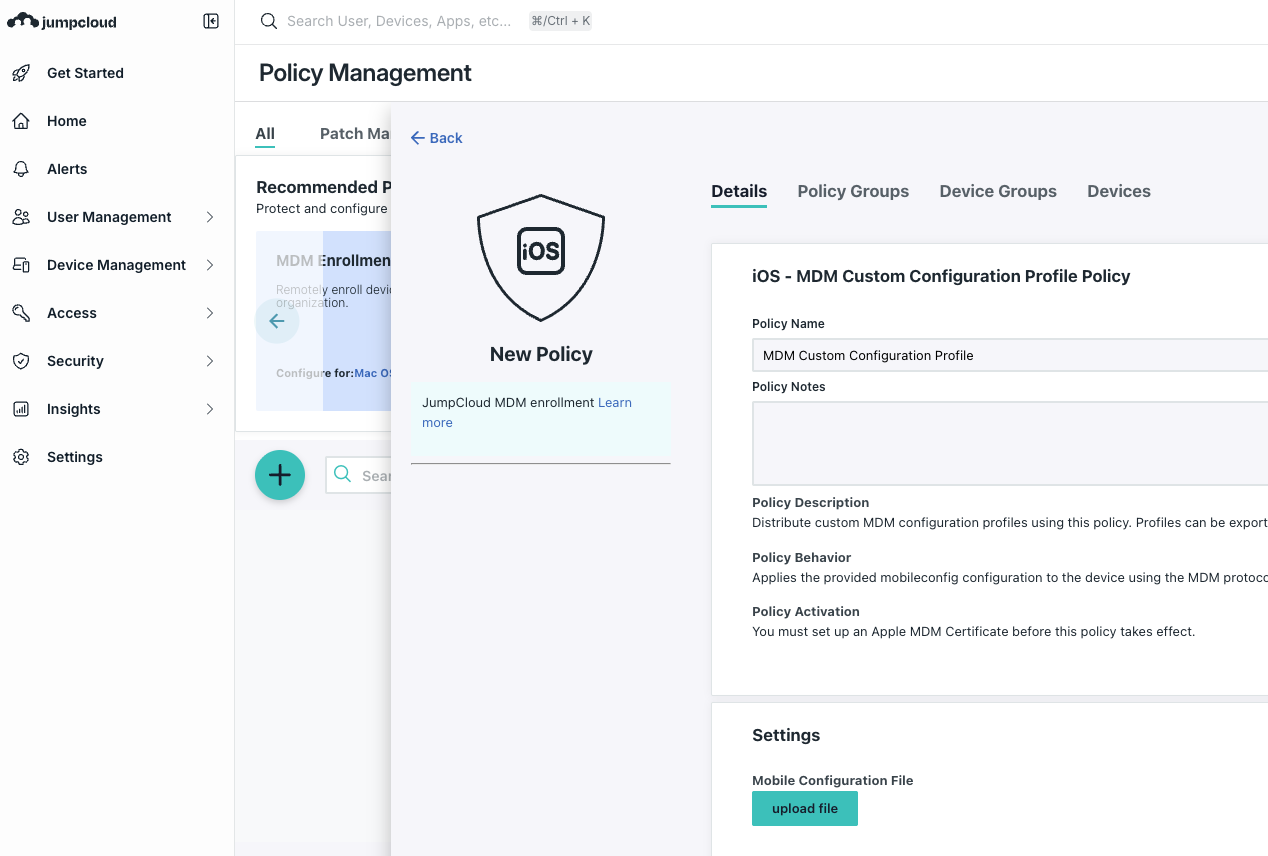
Step 1: Create the Policy
Log in to the JumpCloud Admin Portal.
Navigate to DEVICE MANAGEMENT > Policy Management.
Click the (+) Plus button to create a new policy.
Select the iOS tab.
In the search bar, type
Customand select MDM Custom Profile.Note: If you don't see this exact name, look for "iOS Custom Configuration".
Step 2: Upload Your File
Policy Name: Give it a clear name, e.g.,
Example - Outlook Whitelist.Upload Profile: Click Upload File and select the
outlook_example_clean.mobileconfigfile you just saved.Notes (Optional): You can add a note like "Blocks all domains except Example and O365."
Step 3: Assign to Devices
Click the Device Groups tab (within the policy window).
Select the group of iOS devices you want to lock down (e.g., "Corporate iPhones").
Tip: It is highly recommended to test this on a "Test Group" with just one device first.
Click save.
Step 4: Verification
After saving, the policy will be queued.
On the iOS device, go to Settings > General > VPN & Device Management.
You should see the profile appear shortly (devices usually sync with JumpCloud every 15-60 minutes, or you can force a sync).
Click on the profile to view details. You should see "Example Restriction Profile" listed.
FAQ
1) How do you whitelist only Outlook login on iOS devices?
You must deploy a Web Content Filter profile using the built-in filter in whitelist mode, allowing Microsoft identity and Outlook domains required for authentication.
2) Why does Outlook still sync mail after web filtering is applied?
Outlook for iOS uses native APIs for background mail sync, so the filter only controls the WebKit-based login process, not ongoing email synchronization.
3) Which domains are required for Outlook and Microsoft 365 login on iOS?
You must whitelist Microsoft authentication endpoints, required CDNs, and Outlook service URLs, otherwise the login screen may fail to load or appear blank.
4) Can this profile be deployed using JumpCloud MDM?
Yes. The custom mobileconfig file can be uploaded as an iOS Custom Profile in JumpCloud and assigned to device groups for managed deployment.
Need help securing your environment?
Talk to a NetNXT security expertStay ahead of the next vulnerability
New KB guides, threat advisories and hardening playbooks from NetNXT's security team — straight to your inbox.
NetNXT will handle your data pursuant to its Privacy Policy.
Like this guide? Join our team.
NetNXT builds security for how modern enterprises actually run.
View open roles