
How to Block USB Mass Storage on macOS Sequoia/Sonoma
A step-by-step guide to securing macOS Sequoia (15) and Sonoma (14) endpoints by blocking USB mass storage devices. Learn how to deploy the allowExternalMediaDataStorage restriction using JumpCloud or custom MDM profiles to prevent data exfiltration while keeping keyboards and mice functional.
On this page
Overview
This guide details how to prevent users from mounting external USB mass storage devices (Flash drives, external SSDs, SD cards) on managed macOS devices. This security measure prevents data exfiltration and malware introduction while allowing Human Interface Devices (HIDs) such as USB keyboards, mice, and headsets to function normally.
Note for Apple Silicon (M1/M2/M3): macOS now includes a native "Accessory Security" prompt. This policy will override user choice and strictly block storage mounting, even if the user clicks "Allow" on the connection prompt.
Method 1: The JumpCloud Policy Method (Recommended)
If you are using JumpCloud as your MDM, this is the most reliable method as it deploys a pre-validated configuration profile that survives OS updates.
Log in to your JumpCloud Admin Portal.
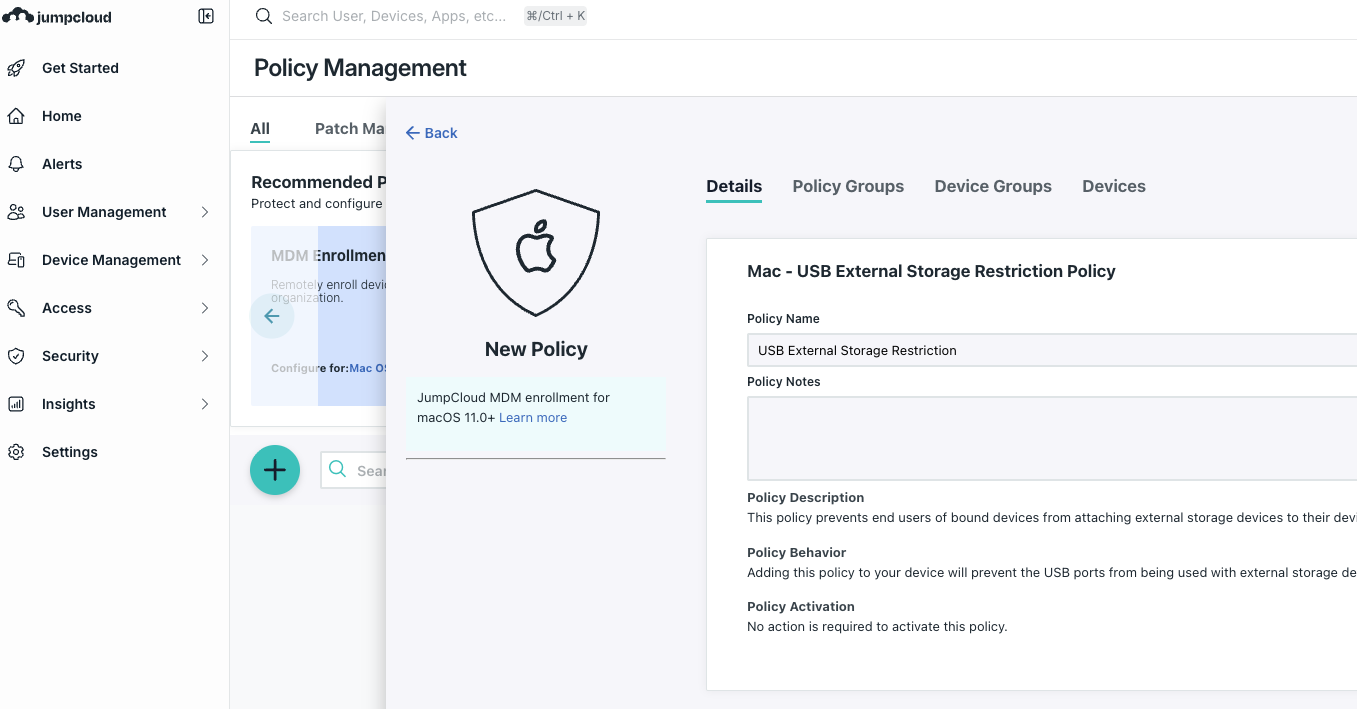
Navigate to Device Management > Policy Management.
Click the (+) button and select the Mac tab.
Search for and select "USB External Storage Restriction".
Configure the Policy:
Policy Name: e.g., Block USB Mass Storage (Security).
Scope: Select the device groups (e.g., "All Mac Workstations") or individual devices.
Click Save.
Deploy: The policy will push to devices on the next check-in (usually within 30 minutes).
Method 2: Custom MDM Profile (Intune / Jamf / Generic)
If you are using a different MDM or need a custom implementation, you must deploy a .mobileconfig file using the Restrictions Payload.
Payload Details:
Payload Type:
com.apple.applicationaccessKey:
allowExternalMediaDataStorageValue:
false
XML Snippet for Custom Profile
Copy the code below to create a .mobileconfig file (e.g., BlockUSBStorage.mobileconfig) and upload it to your MDM's "Custom Profile" section.
<?xml version="1.0" encoding="UTF-8"?>
<!DOCTYPE plist PUBLIC "-//Apple//DTD PLIST 1.0//EN" "http://www.apple.com/DTDs/PropertyList-1.0.dtd">
<plist version="1.0">
<dict>
<key>PayloadContent</key>
<array>
<dict>
<key>PayloadDescription</key>
<string>Blocks mounting of external mass storage devices.</string>
<key>PayloadDisplayName</key>
<string>Block External Storage</string>
<key>PayloadIdentifier</key>
<string>com.netnxt.blockusb</string>
<key>PayloadType</key>
<string>com.apple.applicationaccess</string>
<key>PayloadUUID</key>
<string>58266453-6112-4263-8998-335123987123</string>
<key>PayloadVersion</key>
<integer>1</integer>
<key>allowExternalMediaDataStorage</key>
<false/>
</dict>
</array>
<key>PayloadDisplayName</key>
<string>Restriction - Block USB Storage</string>
<key>PayloadIdentifier</key>
<string>com.netnxt.profile.blockusb</string>
<key>PayloadType</key>
<string>Configuration</string>
<key>PayloadUUID</key>
<string>12345678-1234-1234-1234-123456789012</string>
<key>PayloadVersion</key>
<integer>1</integer>
</dict>
</plist>
User Experience & Troubleshooting
1. The "Allow Accessory to Connect" Prompt
On macOS Sequoia/Sonoma (Apple Silicon), when a user plugs in a USB drive, they may still see a system prompt asking: "Allow this accessory to connect?"
Scenario: The user clicks "Allow".
Result: The device connects electrically (charging works), but the volume will not mount. The drive will not appear in Finder or on the Desktop.
2. How to Verify Success
To verify the policy is active on a client machine:
Open System Settings > Privacy & Security > Profiles.
Look for the "Block External Storage" (or similar) profile.
Double-click it and verify the restriction: "External Media Data Storage: Disabled".
3. Exceptions (Keyboards/Mice)
This policy specifically targets the IOUSBMassStorageClass. It does not block:
USB Keyboards/Mice.
USB Headsets/Webcams.
YubiKeys (unless they have a mass storage partition enabled).
Next Steps for Administrators
Testing: Apply this policy to a "IT Test Group" first. Verify that backup drives (Time Machine) are not critically blocked for users who rely on local backups.
Exclusions: If specific users (e.g., Video Editors) need USB storage, create a separate Device Group in your MDM and exclude them from this policy.
FAQ
1) What does blocking USB external storage on macOS do?
It prevents mounting of USB mass storage devices like flash drives and external SSDs while still allowing essential USB accessories such as keyboards, mice, and headsets.
2) Does this policy work on Apple Silicon Macs?
Yes. On Apple Silicon Macs, this policy overrides the Accessory Security prompt and blocks storage mounting even if the user selects Allow.
3) Can users still use USB keyboards and mice?
Yes. The restriction targets USB mass storage classes only and does not block Human Interface Devices such as keyboards, mice, webcams, or headsets.
4) What is the recommended way to block USB storage on macOS?
Using JumpCloud’s built-in USB External Storage Restriction policy is recommended because it deploys a validated configuration profile that persists across macOS updates.
5) Can this be implemented without JumpCloud?
Yes. You can deploy a custom mobileconfig profile using any MDM that supports the application access restrictions payload.
Need help securing your environment?
Talk to a NetNXT security expertStay ahead of the next vulnerability
New KB guides, threat advisories and hardening playbooks from NetNXT's security team — straight to your inbox.
NetNXT will handle your data pursuant to its Privacy Policy.
Like this guide? Join our team.
NetNXT builds security for how modern enterprises actually run.
View open roles