
How Do You Configure AWS SSO with JumpCloud as Your SAML Identity Provider?
Learn how to set up AWS SSO with JumpCloud as the Identity Provider using SAML. Configure JumpCloud, add the metadata to AWS IAM, create SAML roles, and assign users or groups to enable secure AWS access.
On this page
You configure AWS SSO with JumpCloud by activating an AWS connector in JumpCloud SSO, exporting the JumpCloud SAML metadata, registering it in AWS as a SAML identity provider, and then either creating SAML 2.0 federation roles in IAM that trust that provider (direct IAM federation) or connecting JumpCloud to AWS IAM Identity Center as an external IdP with SCIM provisioning (multi-account federation). Which of the two you choose determines everything that follows, so decide first.
Overview
JumpCloud acts as the SAML 2.0 identity provider; AWS acts as the service provider. Once federation is in place, users authenticate against JumpCloud — with JumpCloud MFA and conditional access policies applied — and receive temporary AWS credentials by assuming an IAM role. No IAM users, no long-lived access keys, no per-account password sprawl.
This guide is for cloud and identity administrators who already run JumpCloud as their directory and need AWS console and CLI access governed centrally.
Expected outcome: users sign in once at JumpCloud, land on the AWS role-selection screen (or the IAM Identity Center portal), assume only the roles their JumpCloud group grants, and appear in CloudTrail under an identifiable session name.
Which federation path do you need?
Direct IAM SAML federation | AWS IAM Identity Center (formerly AWS SSO) | |
|---|---|---|
Best for | 1–3 AWS accounts, simple role model | Multi-account AWS Organizations estates |
Where roles live | IAM roles in each account | Permission sets, assigned centrally |
User provisioning | SAML assertion only (JIT) | SCIM — users and groups synced |
Deprovisioning | Blocks new logins only | SCIM disables the user in Identity Center |
Per-account setup effort | Repeats for every account | One-time, then assign |
CLI/SDK access |
|
|
JumpCloud connector | "Amazon Web Services (IAM)" | "AWS IAM Identity Center" |
If you have more than a handful of AWS accounts, use IAM Identity Center. Direct IAM federation does not scale — you end up maintaining role ARNs by hand in JumpCloud constant attributes for every account you add.
Prerequisites
JumpCloud administrator access to the Admin Portal (
console.jumpcloud.com) with rights to create SSO applicationsAWS account access with permissions for
iam:CreateSAMLProvider,iam:CreateRole, andiam:PutRolePolicy(orAdministratorAccessin a bootstrap window)For the IAM Identity Center path: IAM Identity Center enabled, and AWS Organizations management-account access
JumpCloud user groups already structured to mirror the AWS access tiers you intend to grant
Your AWS account number(s) to hand — they appear inside every role ARN you will paste
A break-glass IAM user or role with console access and MFA, stored outside JumpCloud, in case federation breaks
Path A: Direct IAM SAML Federation
Step 1: Create and Configure the AWS Connector in JumpCloud
In the JumpCloud Admin Portal, go to Access → SSO Applications.
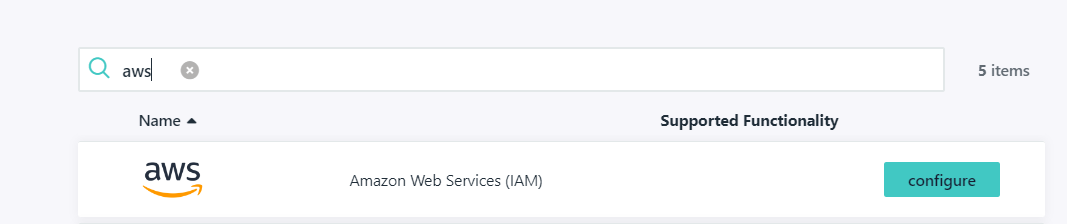
Select (+) Add New Application, search for Amazon Web Services, and choose the Amazon Web Services (IAM) connector.
Under SSO, optionally set a custom value for the IdP URL endpoint. JumpCloud builds it as:
https://sso.jumpcloud.com/saml2/{custom_value}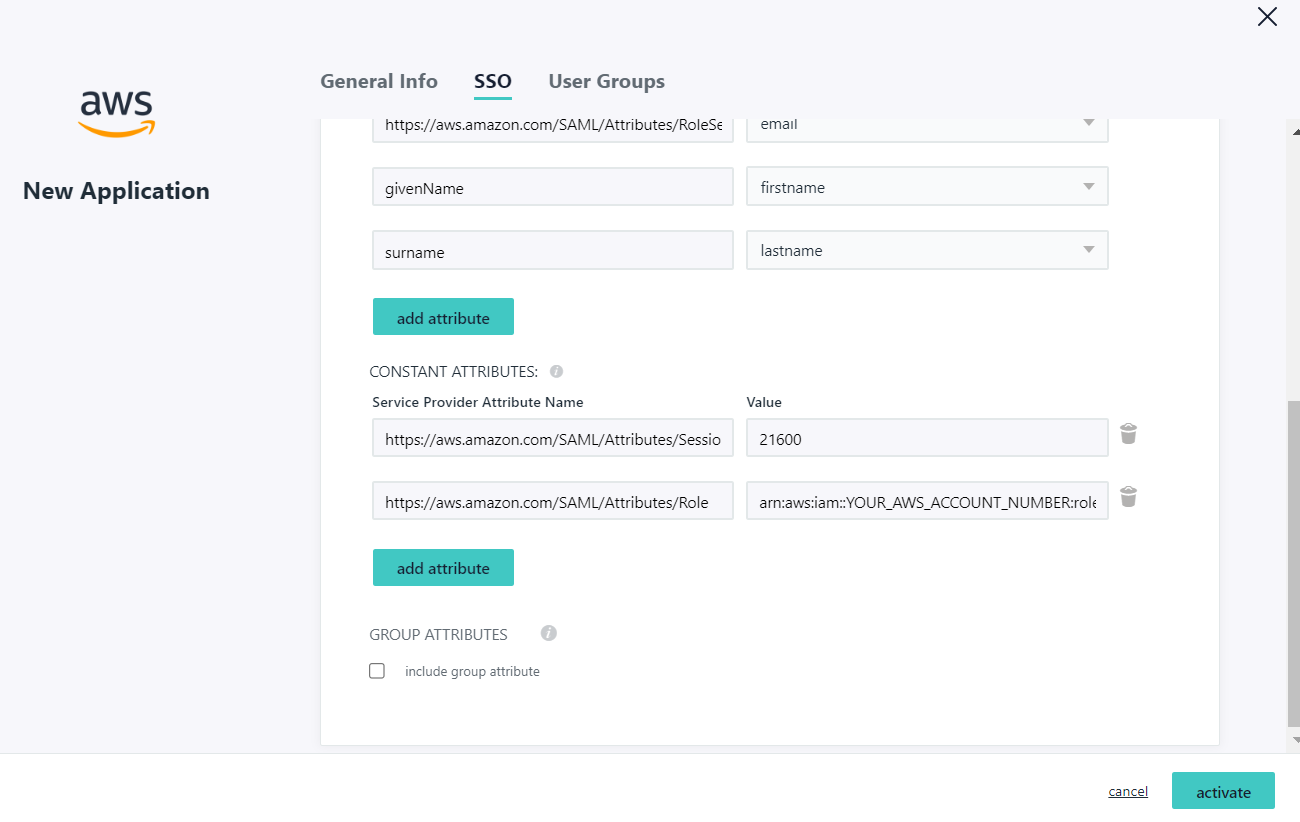
This URL cannot be edited after the application is created. Changing it later means deleting and recreating the application — and re-uploading metadata in AWS. Decide on the value now. 4. Save the application. 5. From the SSO Applications list, export the metadata XML. You will upload this file to AWS in the next step.
Step 2: Register JumpCloud as a SAML Identity Provider in AWS
AWS Console → IAM → Identity providers → Add provider
Select provider type SAML.
Provider name:
JumpCloud— use this exact name. It becomes part of the provider ARN referenced in every role attribute and trust policy, and a mismatch is the single most common cause of a failed first login.Under Metadata document, choose the metadata XML exported from JumpCloud.
Select Add provider.
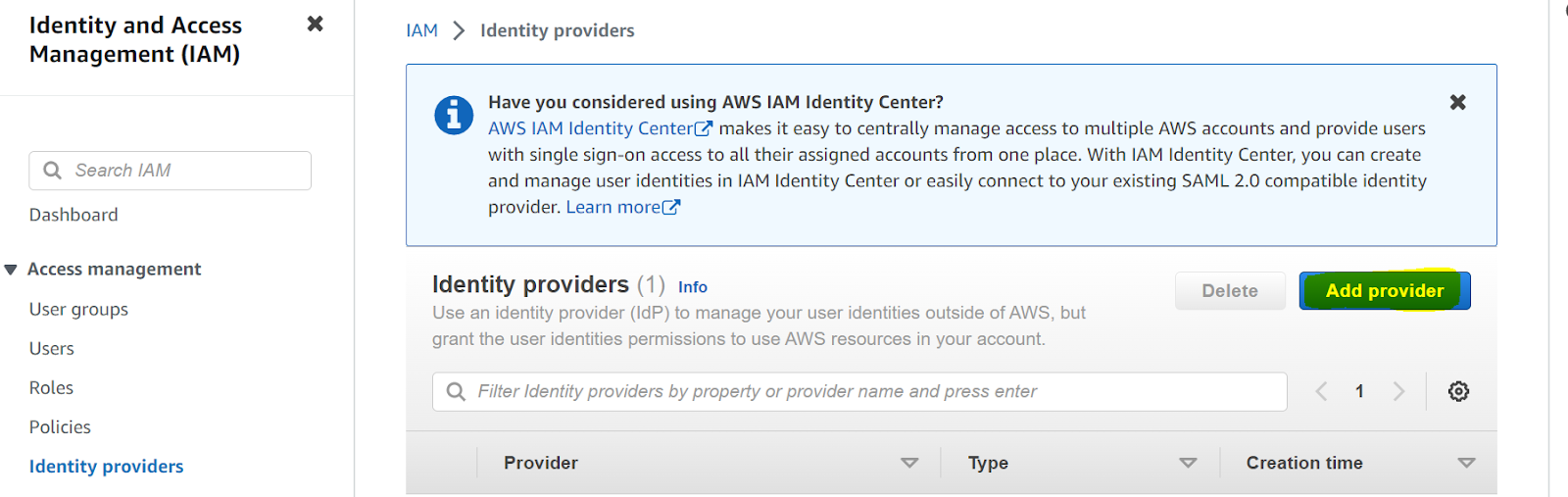
The resulting provider ARN is:
arn:aws:iam::YOUR_AWS_ACCOUNT_NUMBER:saml-provider/JumpCloudIAM is a global service, so the identity provider is created once per AWS account, not per region.
Step 3: Create the SAML 2.0 Federation Role
AWS Console → IAM → Roles → Create role
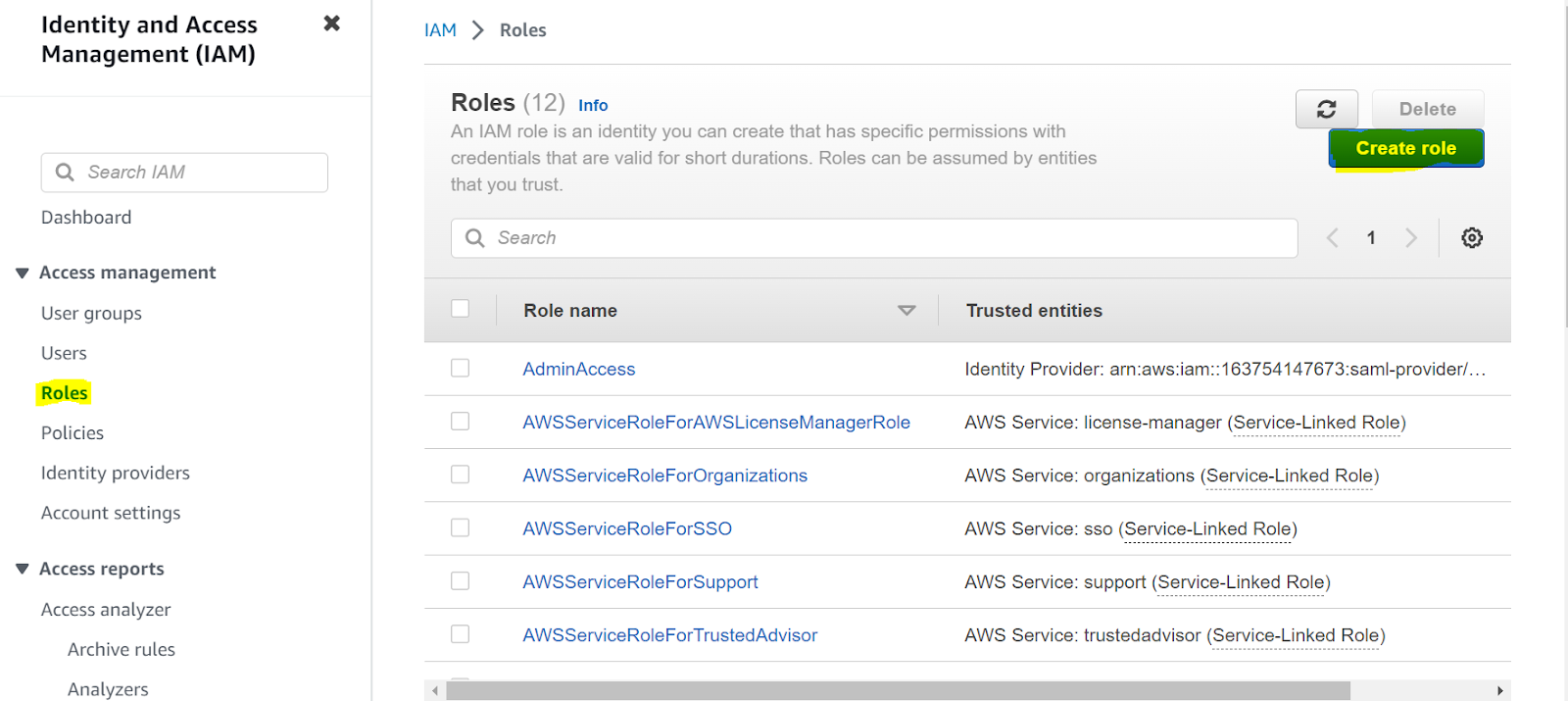
Trusted entity type: SAML 2.0 federation.
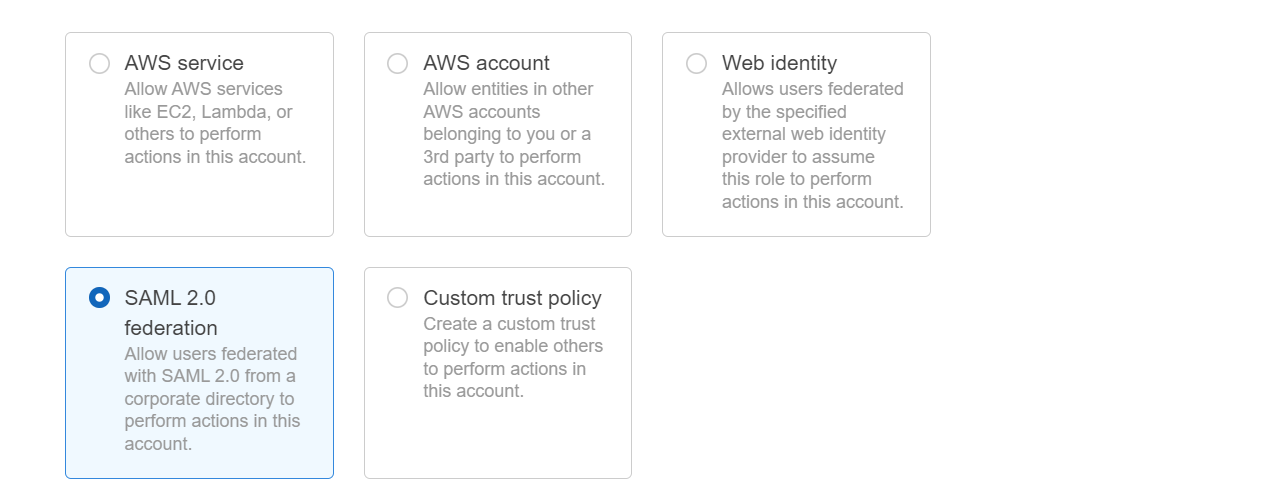
SAML provider: select JumpCloud.
Choose Allow programmatic and AWS Management Console access — this adds the
SAML:audcondition required for console sign-in.Attach permissions policies. Start least-privilege and scope by job function, not by convenience.
Name the role something that maps visibly to a JumpCloud group, e.g.
JumpCloud-DevOps-ReadOnly.
The trust policy AWS generates looks like this:
json
{
  "Version": "2012-10-17",
  "Statement": [
    {
      "Effect": "Allow",
      "Principal": {
        "Federated": "arn:aws:iam::YOUR_AWS_ACCOUNT_NUMBER:saml-provider/JumpCloud"
      },
      "Action": "sts:AssumeRoleWithSAML",
      "Condition": {
        "StringEquals": {
          "SAML:aud": "https://signin.aws.amazon.com/saml"
        }
      }
    }
  ]
}
If you need CLI-only federation without console access, the audience condition differs — verify the value against your STS flow before removing it. Do not simply delete the Condition block; an unconditioned trust policy accepts any assertion from that provider.
Step 4: Map the Role into JumpCloud
Roles are passed to AWS as a SAML attribute. There are two ways to populate it.
Option 1 — Constant attributes (fixed roles per application)
JumpCloud Admin Portal → Access → SSO Applications → select the AWS connector
In the Constant Attributes section, set:
Service Provider Attribute Name | Value |
|---|---|
|
|
Order matters: role ARN first, then a comma, then the SAML provider ARN. No space after the comma. Reversing them produces an assertion AWS rejects.
Add one attribute entry per role you want offered. Where more than one role is present in the assertion, AWS shows the user a role-selection screen at sign-in.
Option 2 — Custom user attributes (dynamic roles per user)
Store the role ARN pair on the JumpCloud user record as a custom attribute, then map that attribute to https://aws.amazon.com/SAML/Attributes/Role under User Attribute Mapping. Use this when a single AWS connector serves users who need different roles. It avoids one application per role, at the cost of maintaining attributes on user records.
Session duration
JumpCloud's AWS template supports a constant attribute for session length:
Service Provider Attribute Name | Value |
|---|---|
| seconds, e.g. |
Valid range is 15 minutes to 12 hours — 900 to 43200. The value must also not exceed the role's own maximum session duration in IAM, or AWS refuses the assertion. Keep production-privilege roles short.
Step 5: Authorize the Groups
JumpCloud Admin Portal → AWS connector → User Groups tab
Select the groups permitted to use this connector and save. JumpCloud denies application access implicitly — a user who is not in an authorized group sees nothing, regardless of what attributes exist.
Path B: AWS IAM Identity Center as the Service Provider
Use this when you run AWS Organizations and want central permission sets plus real provisioning.
Step 1: Establish the SAML Connection
In JumpCloud, add the AWS IAM Identity Center connector (not the IAM connector) and complete the SAML exchange: upload the IAM Identity Center service-provider metadata into JumpCloud, and register JumpCloud's metadata in IAM Identity Center under Settings → Identity source → Change identity source → External identity provider.
Associate the connector with the JumpCloud groups that need AWS access before continuing — SCIM only syncs groups bound to this connector.
Step 2: Enable Automatic Provisioning in IAM Identity Center
AWS Console → IAM Identity Center → Settings → Automatic provisioning → Enable
Copy both values from the Inbound automatic provisioning dialog:
SCIM endpoint, in the form
https://scim.<region>.amazonaws.com/<instance-id>/scim/v2Access token — select Show token
These are displayed once. Copy them into your secret store before closing the dialog. If you lose the token you must generate a new one and re-activate the JumpCloud side.
Step 3: Configure SCIM in JumpCloud
JumpCloud Admin Portal → User Authentication → IAM Identity Center → select the connector → Identity Management tab
Tick Enable management of User Groups and Group membership in this application if you want group sync as well as users. Leave it unticked for users only.
Select Configure.
Base URL: paste the SCIM endpoint.
Token Key: paste the access token.
Select Activate and confirm the green Single Sign-On activated indicator.
On the User Groups tab, select the groups to provision, then Save.
SCIM requirements and limits
Constraint | Detail |
|---|---|
Required user attributes | First name and last name must be populated in JumpCloud, or the user will not sync |
Group scope | Only groups bound to this connector sync |
Phone numbers | One number only; work phone by default |
Disabled users | Attributes continue syncing if the user is active in JumpCloud but disabled in Identity Center |
Regional replication | If Identity Center is replicated to additional regions, the IdP configuration must be updated accordingly |
Step 4 (Optional): Attributes for Access Control
Enable Attributes for access control in IAM Identity Center first, then in JumpCloud under the connector's IAM Identity Center tab → User Attribute Mapping, add mappings of the form:
Service Provider Attribute Name | JumpCloud Attribute |
|---|---|
| Email (Work) |
| (your custom attribute) |
These arrive in AWS as session tags and can be referenced in IAM policy conditions with aws:PrincipalTag/<key>. The assertion AWS expects looks like:
xml
<saml:AttributeStatement>
  <saml:Attribute Name="https://aws.amazon.com/SAML/Attributes/AccessControl:CostCenter">
    <saml:AttributeValue>blue</saml:AttributeValue>
  </saml:Attribute>
</saml:AttributeStatement>
This is what makes tag-based access control possible — one permission set governing many teams, scoped by attribute, instead of a permission set per team.
Validation: How to Verify the Configuration Worked
Run all the checks below. The first one passing does not mean the integration is sound.
1. IdP-initiated login From the JumpCloud User Portal, select the AWS tile. Expected: the AWS role-selection screen (direct IAM federation) or the AWS access portal (Identity Center). You should not be prompted for an AWS password at any point.
2. SP-initiated login Go to the AWS sign-in page and choose the federated/SSO option, or use your Identity Center access portal URL. Expected: redirect to JumpCloud, authentication with MFA, and return to AWS authenticated.
3. Role and permission boundary Assume the role and confirm the console shows your expected account and that a deliberately out-of-scope action is denied. A federated session that can do more than intended is a failed validation, not a successful login.
4. CloudTrail attribution
bash
aws cloudtrail lookup-events \
  --lookup-attributes AttributeKey=EventName,AttributeValue=AssumeRoleWithSAML \
  --max-results 5
Expected: AssumeRoleWithSAML events whose userIdentity resolves to an identifiable session name, not a generic string. If every federated session in CloudTrail reads the same, you cannot attribute actions to people — fix the session-name attribute before you rely on these logs for audit.
5. Provisioning (Identity Center only) In IAM Identity Center → Users, confirm JumpCloud users appear. Then suspend a test user in JumpCloud and confirm the change propagates.
Troubleshooting
Problem: Error: Response Signature Invalid or a generic SAML error at the AWS sign-in page. Cause: The metadata in AWS is stale — typically the JumpCloud application was deleted and recreated, rotating the signing certificate. Fix: Re-export metadata from JumpCloud and update the identity provider in IAM → Identity providers.
Problem: "Your request included an invalid SAML response." Cause: The Role attribute value is malformed — reversed ARN order, a space after the comma, a wrong account number, or a provider name that does not match the IAM identity provider exactly. Fix: Confirm the value reads role-ARN,saml-provider-ARN and that the provider segment matches the name created in Step 2 character for character.
Problem: Login succeeds but "Not authorized to perform sts:AssumeRoleWithSAML." Cause: The role's trust policy does not trust the JumpCloud provider ARN, or the SAML:aud condition does not match the flow being used. Fix: Open the role's Trust relationships tab and verify the Federated principal and the audience condition.
Problem: The user sees no AWS tile in the JumpCloud portal. Cause: The user is not in a group authorized on the connector. JumpCloud denies by default. Fix: Add the user's group under the connector's User Groups tab.
Problem: Session expires far sooner or later than intended. Cause: SessionDuration conflicts with the IAM role's maximum session duration, or is outside the 900–43200 second range. Fix: Align both values; the role maximum is the ceiling.
Problem: A suspended JumpCloud user still has a working AWS console session. Cause: Expected behaviour. Suspension blocks new SAML authentications; it does not invalidate STS credentials already issued. Fix: See the section below.
Security and Best Practices
Deprovisioning does not revoke live sessions
This is the gap most teams discover during an incident rather than before one. Suspending a user in JumpCloud stops the next login. It does not terminate a session whose temporary credentials are already minted — those remain valid until they expire, up to 12 hours.
To actually cut off access:
Keep
SessionDurationshort for anything privileged. One hour, not twelve. This bounds your worst case.Attach a role revocation policy. IAM offers a one-click Revoke active sessions on the role, which adds an inline deny for sessions issued before a timestamp:
json
{
  "Version": "2012-10-17",
  "Statement": [
    {
      "Effect": "Deny",
      "Action": ["*"],
      "Resource": ["*"],
      "Condition": {
        "DateLessThan": {
          "aws:TokenIssueTime": "REPLACE-WITH-CURRENT-UTC-TIMESTAMP"
        }
      }
    }
  ]
}
Note this revokes every session on that role issued before the timestamp, not just one user's. Use it as a break-glass action, and understand the blast radius before you run it during business hours.
Add the SCIM step (Path B) so offboarding disables the user in Identity Center rather than only at the IdP.
Write the sequence down in your offboarding runbook: suspend in JumpCloud → verify no active
AssumeRoleWithSAMLsessions in CloudTrail → revoke the role if one exists.
The rest of the hardening list
Enforce MFA at JumpCloud, not AWS. Once federation is live, JumpCloud is the only authentication surface. A federation deployment without MFA on the IdP has made your AWS security posture worse, not better — you have consolidated risk into one credential.
Protect the break-glass path. Keep one IAM user or role with console access and its own MFA, credentials in a physical safe or an offline vault, excluded from JumpCloud. If the IdP is unreachable, this is your only way in. Alarm on its use.
Least privilege by default. Federated roles tend to accumulate permissions because adding a policy is faster than modelling access. Review role policies quarterly and scope resources, not just actions.
Never reuse one role across tiers. One role per job function per account. A shared "developer" role across dev and production is an audit finding waiting to happen.
Guard the SCIM token like a root credential — it can create and modify identities in Identity Center. Store it in AWS Secrets Manager or your password manager, never in a ticket or chat message.
Test in a non-production account first. Register the identity provider and role in a sandbox account, validate both login directions, then replicate.
Regional Considerations for India-Based Teams Managing Global AWS Accounts
If your engineering team sits in India and your AWS estate spans Indian and overseas regions, a few things need deliberate handling. None of them block the integration — they determine whether it holds up under audit.
IAM is global; Identity Center is not. The SAML identity provider and IAM roles you create in Path A are account-wide and region-independent. IAM Identity Center, by contrast, runs in one region you select, and its identity store lives there. If you choose ap-south-1 (Mumbai) or ap-south-2 (Hyderabad) as the Identity Center region, that is where directory data resides. Choose it before you provision users, because moving it later means rebuilding the instance.
Your identity provider is a third-party processor. JumpCloud is SaaS. Authentication events, user directory attributes, and group membership are processed on JumpCloud infrastructure, not yours. Under India's Digital Personal Data Protection framework — the DPDP Rules were notified on 14 November 2025 with obligations phasing in through to mid-2027 — your IdP is part of your processing chain and belongs in your data-processing inventory alongside a processor agreement. Organisations designated as Significant Data Fiduciaries carry additional audit and assessment obligations. Confirm the specifics with your privacy counsel; the point here is that the IdP is in scope, and teams routinely forget to list it.
Region-scope your roles. Federation grants identity, not geography. A federated role with unscoped permissions can create resources in any enabled region — which quietly undermines a data-residency commitment. Constrain it, either in the role policy or with a Service Control Policy at the Organizations level:
json
{
  "Version": "2012-10-17",
  "Statement": [
    {
      "Effect": "Deny",
      "NotAction": [
        "iam:*",
        "sts:*",
        "organizations:*",
        "support:*",
        "cloudfront:*",
        "route53:*",
        "budgets:*"
      ],
      "Resource": "*",
      "Condition": {
        "StringNotEquals": {
          "aws:RequestedRegion": ["ap-south-1", "ap-south-2"]
        }
      }
    }
  ]
}
The NotAction exclusions matter: IAM, STS, Organizations, CloudFront and Route 53 are global-endpoint services and denying them by region will break your own federation. Test this in a sandbox OU before applying it anywhere near production.
Session duration across time zones. A 12-hour session set for convenience means an engineer in IST who signs in at 09:30 still holds live production credentials at 21:30, long after they have closed the laptop. Short sessions with a smooth re-auth flow are both safer and, in practice, less annoying than they sound.
Audit trail attribution. CloudTrail is your evidence. Federated sessions that all look alike in the logs are worthless for an incident review or a compliance audit. Verify attribution during commissioning, not after the incident.
When to Handle This Internally, and When to Bring in Help
Path A into one or two AWS accounts is an afternoon's work for an administrator comfortable with IAM trust policies. Follow the steps above.
The picture changes at a predictable set of thresholds:
More than roughly five AWS accounts. Hand-maintaining role ARNs in JumpCloud constant attributes stops being viable, and a permission-set model in Identity Center needs designing rather than improvising.
Migrating off IAM users with live access keys. Cutting over without an outage means inventorying every key, every CI/CD pipeline and every script that holds one, then retiring them in sequence. This is the phase where most self-managed projects stall halfway and leave both mechanisms active — which is worse than either alone.
An audit or certification is driving the work. SOC 2, ISO 27001 and DPDP readiness need documented evidence of access reviews, deprovisioning timelines and session controls, not just a working login.
Federation already exists and you inherited it. Auditing someone else's role trust policies and permission scope is harder than building fresh, and the findings are usually the reason someone asked.
You have no break-glass plan. If nobody can answer "how do we get into AWS if JumpCloud is down", that is the first thing to fix, before anything else here.
NetNXT implements and manages JumpCloud and AWS identity federation for Indian and global enterprises — including multi-account permission-set design, access-key retirement programmes, SCIM offboarding automation, and the audit evidence that goes with them. If any of the thresholds above describe your position, a scoping conversation is usually shorter than a stalled migration.
FAQs
1) How do you configure AWS SSO with JumpCloud using SAML 2.0?
Activate the Amazon Web Services (IAM) connector in JumpCloud SSO, export the JumpCloud metadata XML, and upload it in AWS IAM → Identity providers as a SAML provider named JumpCloud. Then create an IAM role with trusted entity type SAML 2.0 federation, and in JumpCloud set the constant attribute https://aws.amazon.com/SAML/Attributes/Role to role-ARN,saml-provider-ARN. Finally, authorize the relevant JumpCloud user groups on the connector.
2) What IAM role type is required for AWS SSO with JumpCloud?
A SAML 2.0 federation role. Create it in IAM → Roles → Create role, select SAML 2.0 federation as the trusted entity, choose the JumpCloud identity provider, and enable programmatic and console access so the SAML:aud condition of https://signin.aws.amazon.com/saml is added to the trust policy. Attach least-privilege permissions scoped to the job function the role represents.
3) Does AWS SSO via JumpCloud revoke existing AWS sessions when a user is suspended?
No. Suspending a user in JumpCloud blocks new SAML authentications immediately, but temporary credentials already issued by AWS STS remain valid until they expire — up to 12 hours. To cut off an active session, use Revoke active sessions on the IAM role (which denies all sessions issued before that timestamp, not just one user's), and keep SessionDuration short on privileged roles to bound the exposure window.
4) What is the correct format for the AWS SAML Role attribute in JumpCloud?
The value of https://aws.amazon.com/SAML/Attributes/Role is the role ARN, a comma, then the SAML provider ARN, with no space: arn:aws:iam::123456789012:role/JumpCloud-DevOps,arn:aws:iam::123456789012:saml-provider/JumpCloud. Reversing the order, adding a space, or using a provider name that differs from the one registered in IAM produces an invalid-SAML-response error at sign-in.
5) Should you use direct IAM SAML federation or AWS IAM Identity Center with JumpCloud?
Use direct IAM SAML federation for one to three AWS accounts with a simple role model — setup is faster and self-contained. Use AWS IAM Identity Center for AWS Organizations estates, because permission sets are assigned centrally instead of per account, and SCIM provisioning syncs and disables users automatically. Beyond roughly five accounts, maintaining role ARNs manually in JumpCloud stops being practical.
Need help securing your environment?
Talk to a NetNXT security expertStay ahead of the next vulnerability
New KB guides, threat advisories and hardening playbooks from NetNXT's security team — straight to your inbox.
NetNXT will handle your data pursuant to its Privacy Policy.
Like this guide? Join our team.
NetNXT builds security for how modern enterprises actually run.
View open roles